Building Shopify apps
Turn on the Shopify apps use case and set up the embed, identity, and Partners for a Shopify app.
This page is the one place that covers what's different when the product you support is a Shopify app. Everything in Getting started still applies — a Shopify app is a product like any other — and this page adds the Shopify surfaces on top.
What you get
- Embed: pages that render inside your Shopify embedded app — changelog, feature requests, helpdesk, and campaign banners.
- Signed identity: your server signs the merchant's shop identity with a Relay Secret, so helpdesk and feature requests know which shop is acting — see Identity Verification. The same signed identity powers the authenticated helpdesk inside the chat widget.
- Store context in conversations: the merchant's store, app install history, and Dev Dashboard links appear next to the conversation.
- Review requests: agents can trigger the Shopify review prompt from a conversation once the moment is right.
1. Turn on the use case
Go to Settings → Workspace → Use Cases and switch on Shopify apps. Onboarding asks the same question when the workspace is created.
Switching it on reveals the Shopify fields on the product form, a Shopify section on each product page, and the Shopify and Shopify Partners entries in Settings → Integrations. Nothing else changes; the rest of the dashboard is the same for every product.
Shopify itself is a per-product integration: Settings → Integrations → Shopify lists your products with an on/off switch. Filling in any Shopify field on the product page turns it on too. Only products with Shopify on verify shop identities, show store context, ask for reviews, or get Shopify-flavoured AI prompts — see Integrations.
2. Add Shopify details to the product
Open your product in Settings → Products (or create it — one product per Shopify app).
- Shopify App Store URL — Relay reads the listing to fill in the name and logo.
- Shopify Partner App ID — used to build Partners app-history links.
- Client ID — in the product page's Shopify section; stored for reference.
Relay never needs your Shopify client secret. The only credential Relay generates for you is the Relay Secret, below.
3. Enable the embed
On the product page, in the Embed section, click Enable Embed. This generates the product's embed token and shows the embed snippet — use that snippet as your source of truth instead of rebuilding it by hand.
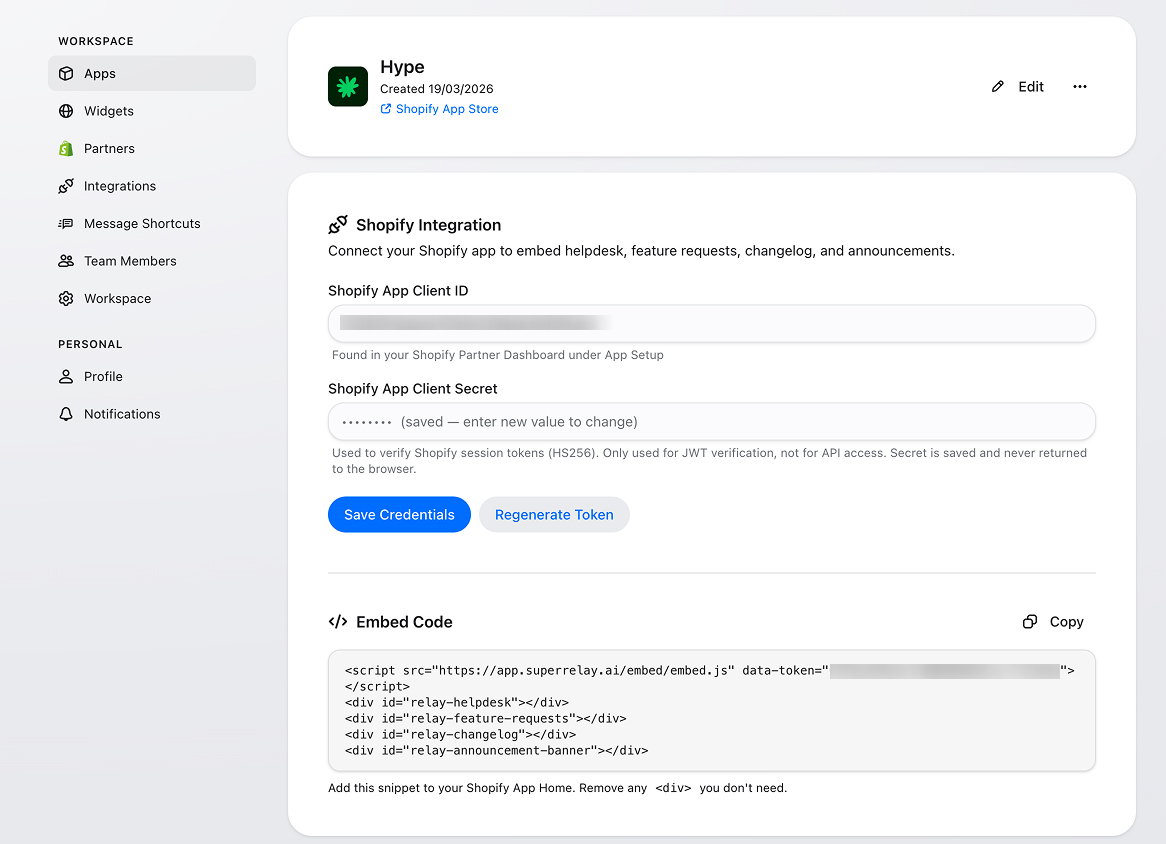
Then install the script and mount only the surfaces you need — see Embed.
4. Generate the Relay Secret
In the product page's Identity section, click Generate next to Relay Secret and copy it into your server as RELAY_SECRET. Your server uses it to sign each shop's identity so Relay can authenticate helpdesk and feature-request actions. See Identity Verification for the exact code (React Router loader, PHP, and a generic HMAC reference).
5. Connect Shopify Partners (optional)
Go to Settings → Integrations → Shopify Partners if you want conversations (and Slack ticket notifications) to show Shopify Partners app history and Dev Dashboard links for the merchant's store. The old Settings → Partners link forwards there.
Provide:
- Partner Organization ID
- optionally the Dev Dashboard ID
- the product selection for the partner account
No session token or cookie is required — Relay only builds links, it never acts inside Partners on your behalf.
What requires a signed identity
- Widget chat: no identity needed.
- Widget helpdesk: connect the widget to the product and provide the signed identity.
- Embed changelog: the embed token is enough.
- Embed campaign banner: the embed token is required; shop context is read at runtime.
- Embed feature requests: the list loads with the token; creating, voting, and replying need the signed identity.
Identifying merchants from the widget
If you also run the chat widget inside your app, pass the shop domain in identify so Relay can attach the conversation to the right store:
<script>
  window.$relay = window.$relay || []
  window.$relay.push([
    "identify",
    { name: "Jane Doe", email: "[email protected]", shopName: "acme.myshopify.com" }
  ])
</script>
The other identify fields and widget commands are on the Relay SDK page.
Checklist
- Shopify apps is on in Settings → Workspace → Use Cases.
- Shopify is on for the product in Settings → Integrations → Shopify.
- The product has its App Store URL (and Partner App ID, if you use Partners).
- The embed is enabled and the embed token generated.
- A Relay Secret is generated and set as
RELAY_SECRETon your server. - The partner account is connected, if you want Partners links in conversations.